
Want to top up your gaming wallet without payment errors, confusing steps, or scam risks? This playtime gcash guide walks you through the deposit process, from selecting your amount to checking whether your funds have arrived. Follow each screen carefully, and avoid rushing through payment confirmation.
What You Need Before Depositing
Prepare these essentials before starting:
- A verified GCash account: Make sure you can access your account and complete its login requirements.
- Enough balance: Check that your GCash balance can cover your chosen deposit amount.
- A stable connection: A reliable internet connection helps prevent interruptions while payment pages load.
- A logged-in Playtime account: Complete a successful playtime gcash login on the PT Gaming site or app before opening the Store.
Having these ready reduces avoidable mistakes. Features and payment options will change, so verify the current details inside the platform.
Playtime GCash Deposit Steps
When I walked through the deposit flow, the important checkpoints were the selected amount, the payment method, and the GCash login.
- Open Store. After logging in to PT Gaming, tap Store on the main page. Double-check that you’re using your intended account.
- Select Deposit. Choose Deposit on the Store page. Confirm you’re on the deposit screen before proceeding.
- Choose your amount. Select an amount from the options displayed. For example, if you choose a ₱100 option, treat that figure as an illustration only, not a guaranteed available amount.
- Select GCash. Choose GCash as the payment method, then tap the button displaying your selected amount. Check the amount again before tapping to avoid authorising the wrong value.
- Wait for the page to load. Allow the payment page to finish loading before taking another action. Avoid tapping repeatedly or leaving mid-load.
- Enter your GCash mobile number and log in. Carefully verify your number before continuing. The GCash login takes place on the payment page so you can proceed through the payment flow.
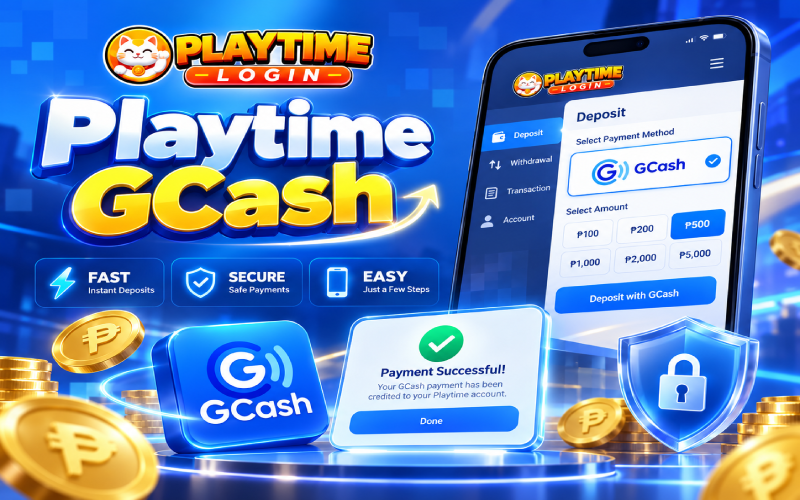
- Wait for payment confirmation. Once GCash successfully processes the payment, the funds are credited to your Playtime wallet. Check the wallet rather than assuming the transaction succeeded simply because you completed the login.
How to Tell Your Deposit Went Through
A successful payment should result in the funds appearing in your in-platform wallet. Check both your GCash transaction history and your Playtime wallet to confirm the transaction.
Keep the GCash reference number and a screenshot of the transaction details for your records.
Common Problems and Quick Fixes
- The page keeps loading: Check your connection and give the page time to respond. Avoid restarting the payment repeatedly before checking its status.
- You entered the wrong mobile number: Stop and verify the details before proceeding. If payment has already been made, save the transaction information and contact support.
- GCash deducted the money, but Playtime has not credited it: Don’t immediately pay again. Check GCash transaction history, save the reference number, capture screenshots of the deduction and wallet balance, then contact Playtime support with the details. Ask this to investigate the uncredited deposit.
- The GCash app does not open: Check whether the payment page is still active and whether you can access GCash normally. Avoid entering account details on an unfamiliar page.
- Your OTP does not arrive: Check your mobile signal and confirm that you’re using the correct number. Never share an OTP with anyone claiming this can complete the payment for you.
A common mistake is typing one incorrect digit in the GCash number or leaving the page while it is still loading. Double-check before proceeding, and verify the transaction status before attempting another deposit.
Staying Safe When You Deposit
Use only the official Playtime site or app, and never share your GCash MPIN or OTP with another person. Avoid unofficial agents requesting transfers outside the platform, enable available GCash security features, and avoid public Wi-Fi when handling payments.
For account protection guidance, visit the GCash Help Center. For gambling safeguards, consult PAGCOR’s official website.
Play Responsibly
Online gaming is for adults aged 21 and above. Set a deposit budget before topping up, and only play with money you can afford to lose. Never borrow money or chase losses to continue playing.
PAGCOR provides responsible gaming information and resources. Seek help if gaming stops being enjoyable or starts affecting your finances, relationships, or daily responsibilities.
Frequently Asked Questions
The provided deposit instructions do not specify fees. Check the Store page and payment screen for current details before confirming.
No specific processing time is confirmed in the available instructions. Check your GCash transaction history and Playtime wallet after payment.
The instructions cover GCash only. Check the Store page for current payment options.
Final Thoughts
A careful playtime gcash deposit starts with the correct amount, a verified mobile number, and a confirmed payment. Follow the on-screen steps, keep your transaction reference, and contact Playtime support if your funds leave GCash without appearing in your wallet. This is an informational guide, not financial advice; verify current features in the app before depositing, and always play within your limits.